![RRA_Logo_For_email.png]](https://knowledge.rudolphresearch.com/hs-fs/hubfs/RRA_Logo_For_email.png?height=50&name=RRA_Logo_For_email.png)
Issue Type: Windows Update / Printer Driver Notifications
Overview
Some Rudolph Research Analytical instruments may display Windows notifications indicating that updates are available or that Windows is attempting to install updates.
These notifications may be caused by default Brother printer drivers installed on the instrument's Windows operating system. Windows automatically attempts to locate and install updates for these drivers, even when the drivers are not required for normal instrument operation.
This article explains how to remove the unnecessary Brother printer drivers to prevent these update notifications from recurring.
Problem
The instrument displays recurring Windows automatic update notifications associated with Brother printer drivers.
Common symptoms may include:
- Windows attempting to download or install updates.
- Repeated notifications requesting driver updates.
- Windows Update messages appearing during instrument operation.
Cause
The instrument's Windows operating system contains two default Brother printer drivers. Windows may periodically attempt to update these drivers automatically.
Removing the unnecessary drivers eliminates this source of update notifications without affecting normal instrument operation, provided the Brother drivers are not required for an attached printer.
Resolution
Follow the steps below to uninstall the Brother printer drivers.
Step 1: Disable Disk Protection
Before making changes to the instrument's Windows configuration, disk protection must be temporarily disabled.
For Refractometers:
- Select MENU.
- Navigate to SERVICE SETTINGS 519.
- Select CONTROL PANEL.
- Select Disable Disk Protection.
- Allow the instrument to restart automatically.
For Polarimeters:
- Select MENU.
- Navigate to CALIBRATION & SERVICE.
- Select INSTRUMENT SETTINGS.
- Select CONTROL PANEL.
- Select Disable Disk Protection.
- Allow the instrument to restart automatically.
For Density Meters:
-
Select MENU.
-
Navigate to OPERATIONAL PARAMETERS.
-
Select INSTRUMENT CONFIGURATION.
-
Select CONTROL PANEL.
-
Select Disable Disk Protection.
-
Allow the instrument to restart automatically.
Important: Disk protection must be disabled before uninstalling the drivers so that the changes are retained after restarting.
Step 2: Open Windows Programs and Features
After the instrument has restarted:
- Return to the instrument's Control Panel using the appropriate menu navigation described above.
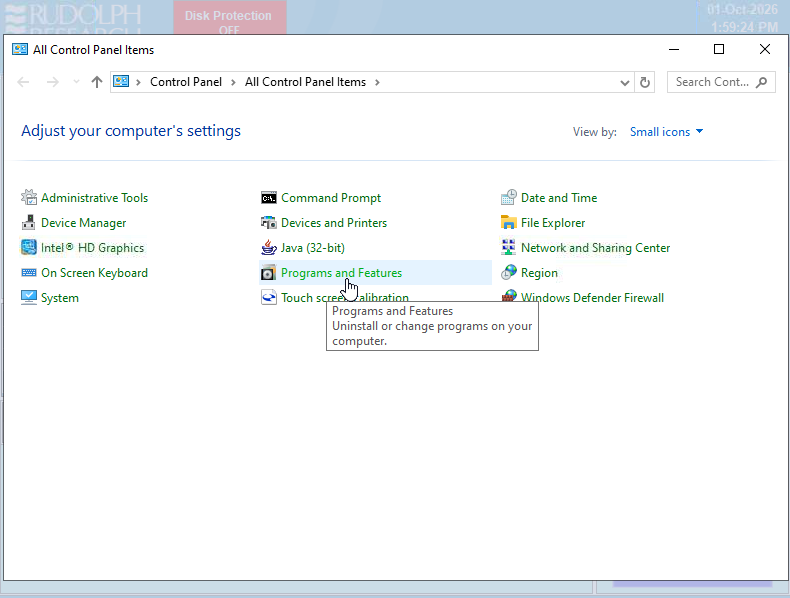
- Open the Windows Control Panel.
- Select Programs and Features.
- Review the list of installed programs.
Step 3: Locate the Brother Printer Drivers
Within Programs and Features, locate the two installed Brother printer driver entries.
Verify that both entries are associated with Brother printer drivers before proceeding.

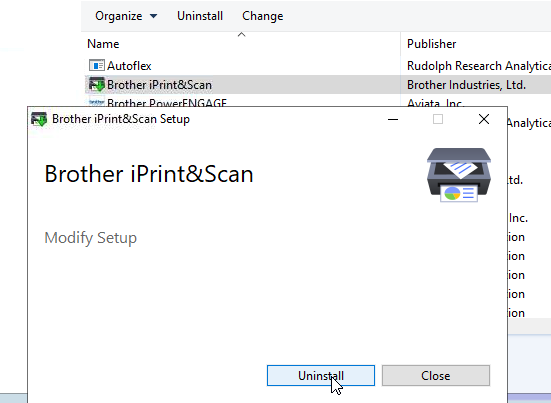
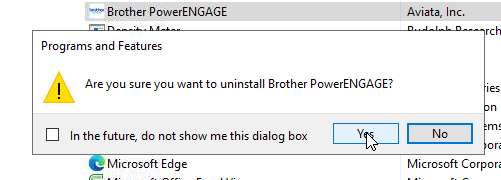
Step 4: Uninstall Both Brother Drivers
- Select the first Brother printer driver.
- Click Uninstall.
- Follow the on-screen instructions to complete the removal.
- Repeat the process for the second Brother printer driver.
- Confirm that both Brother driver entries have been removed from the installed programs list.
Note: Only remove the identified Brother printer drivers. Do not uninstall unrelated Windows components or instrument software.
Step 5: Re-enable Disk Protection
Once both Brother printer drivers have been successfully removed:
- Close the Windows Control Panel.
- Return to the instrument's Control Panel settings.
- Select Enable Disk Protection.
- Allow the instrument to restart automatically.
Important: Always re-enable disk protection after completing the procedure to restore the instrument's normal protected operating configuration.
Step 6: Verify the Resolution
After the instrument restarts:
- Confirm that the instrument starts normally.
- Verify that disk protection is enabled.
- Confirm that the Brother printer drivers are no longer listed in Programs and Features.
- Verify that the previously reported Windows update notification no longer appears.
Expected Result
After removing both unnecessary Brother printer drivers and re-enabling disk protection, Windows should no longer attempt to update those drivers.
The instrument should resume normal operation without the recurring Brother driver update notifications.
If the issue persists: Contact Rudolph Research Analytical Technical Support for additional assistance. Other Windows components may also generate update notifications and may require further investigation.